Nezler
 In this article
You don't need ten gadgets to fix a laptop desk. You need two things: a sharp external monitor at eye level, and your MacBook raised beside it. Get those right and your neck, your desk space and your productivity all improve. These three builds pair monitors from our Mac monitor guide with the Gadget Wagon 2-in-1 arm, which holds both on one pole.
Quick picks
Build 1: the student / budget desk (about ₹23k–₹26k)
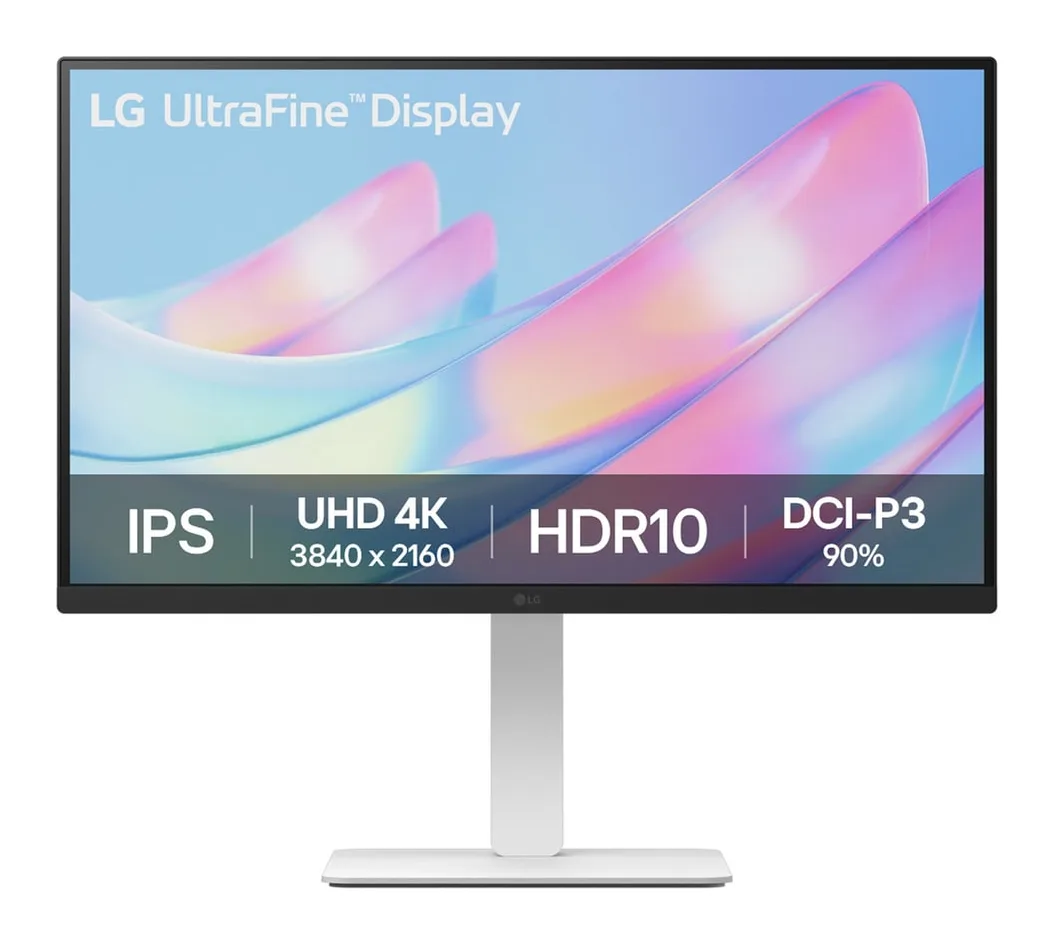
#1 · LG 27US550 27" UltraFine 4K IPS Monitor
The cheapest sensible way to get sharp 4K text on a Mac — as long as you don't mind using a cable adapter.
What we like
- 4K IPS sharpness at a budget price
- 90% DCI-P3 (claimed) — good colour for the money
- Fully adjustable stand (height, tilt, swivel, pivot)
- 3-year LG warranty
Keep in mind
- No USB-C on this listing — needs a USB-C-to-HDMI or USB-C-to-DisplayPort cable, and won't charge your Mac
- Lower brightness than the others
- 60Hz
Full specifications
| Panel | 27" IPS, anti-glare |
|---|---|
| Resolution | 3840 × 2160 (4K UHD) |
| Refresh rate | 60Hz |
| Brightness (claimed) | ~240–250 nits |
| Colour (claimed) | 90% DCI-P3 |
| USB-C charging | None |
| Ports | 2× HDMI, DisplayPort |
| Speakers | — |
| Stand | Height, tilt, swivel, pivot |
| VESA | Check listing |
| Warranty | 3 years (LG) |
Pair with: the Gadget Wagon arm and a USB-C-to-DisplayPort cable. The LG gives you 4K text sharpness for coding, notes and documents. Because it has no USB-C, your MacBook charger stays plugged in. That's one extra cable, which the arm's cable channels help hide.
Build 2: the sweet spot (about ₹33k–₹37k)
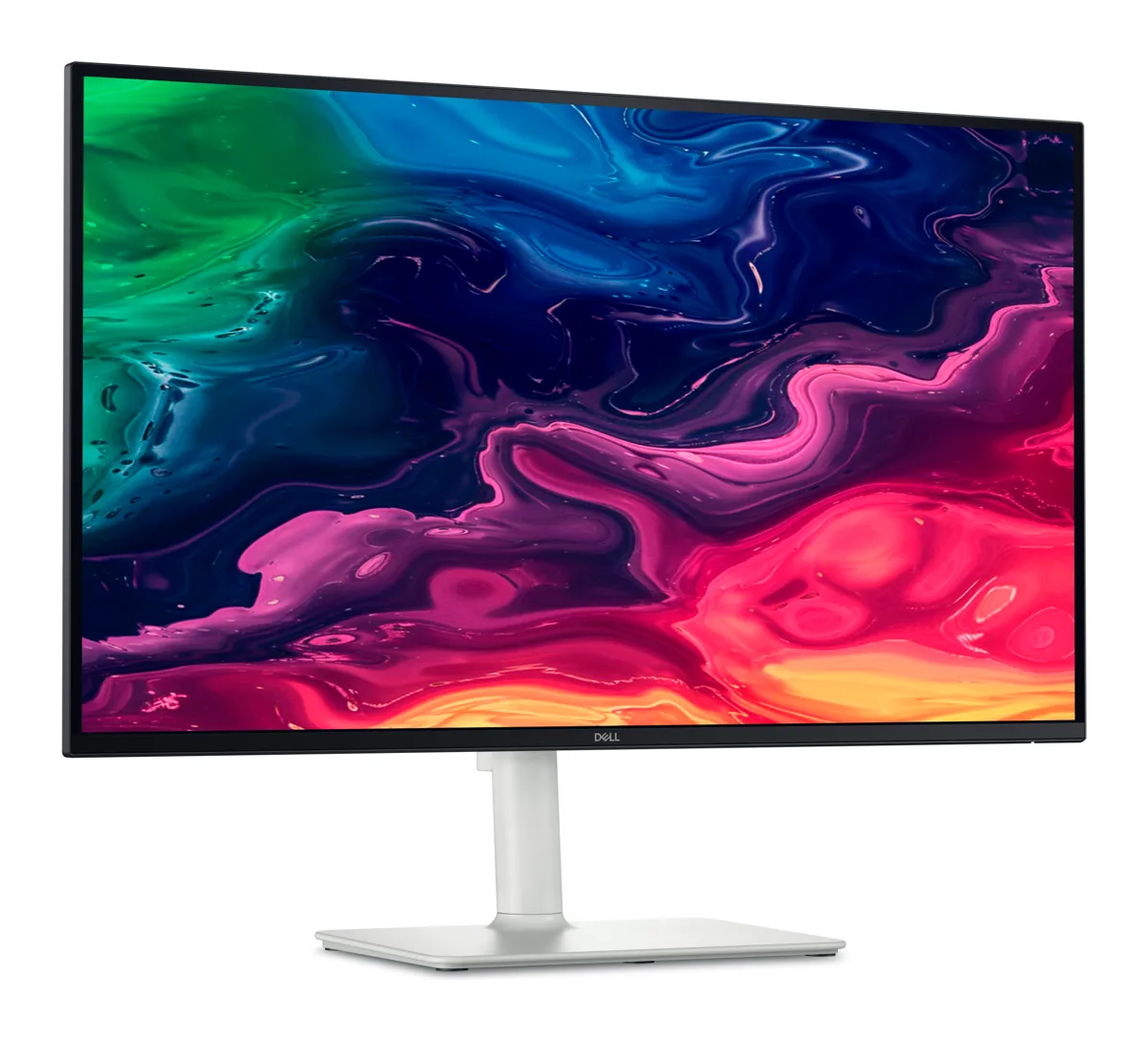
#2 · Dell 27 Plus 4K USB-C Monitor (S2725QC)
4K at 120Hz, a single USB-C cable for your MacBook and a fully adjustable stand — the easiest monitor to recommend right now.
What we like
- Rare 4K + 120Hz combo at this price — scrolling feels close to ProMotion
- One USB-C cable carries video, data and up to 65W charging
- Height, tilt, swivel and pivot stand in the box
- Dual 5W speakers and a 3-year Dell warranty
Keep in mind
- 65W charging is not enough for a 14/16-inch MacBook Pro under heavy load
- sRGB-focused — no wide P3 colour coverage claimed
- 350 nits is fine indoors, not HDR-bright
Full specifications
| Panel | 27" IPS, matte |
|---|---|
| Resolution | 3840 × 2160 (4K UHD) |
| Refresh rate | 120Hz, AMD FreeSync Premium |
| Brightness (claimed) | 350 nits |
| Colour (claimed) | 99% sRGB |
| USB-C charging | Up to 65W |
| Ports | USB-C upstream, 2× HDMI, USB hub |
| Speakers | 2 × 5W |
| Stand | Height, tilt, swivel, pivot |
| VESA | 100 × 100 |
| Warranty | 3 years (Dell) |
Pair with: the Gadget Wagon arm. This is the build we recommend to most people. One USB-C cable from the Dell to your MacBook carries the picture and up to 65W of charging and runs the USB hub. You get 120Hz smoothness, built-in speakers and a screen floating off the desk. Remove the Dell's stand and mount it with the 100 × 100 VESA plate.
Build 3: the creator desk (about ₹47k–₹51k)
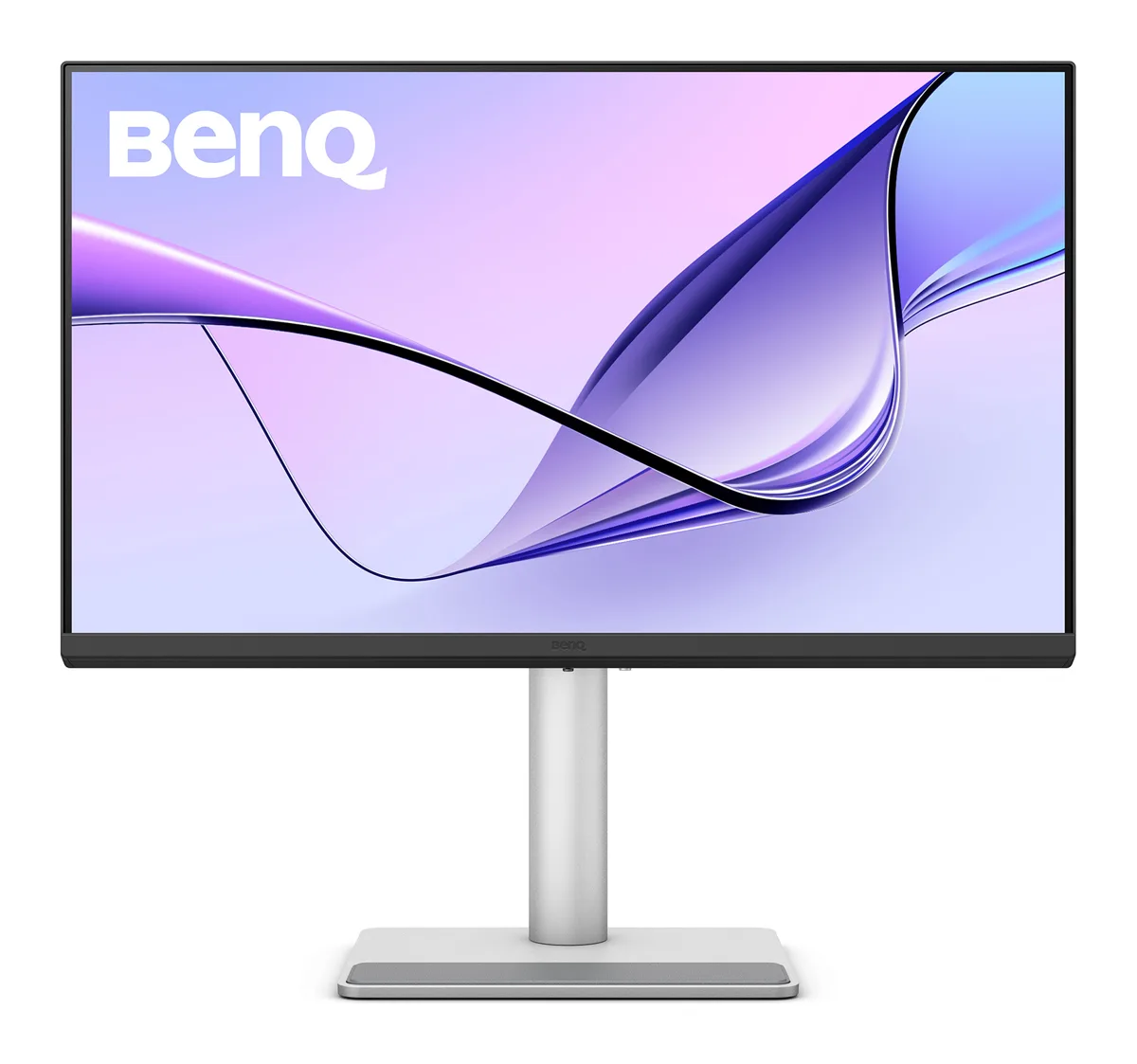
#3 · BenQ MA270U 27" 4K Monitor for Mac
Designed specifically for MacBooks: Mac-tuned colour, brightness and volume control from your Mac keyboard, and 90W charging.
What we like
- Mac colour tuning so the screen matches your MacBook display
- Control brightness and volume from the Mac keyboard
- 90W USB-C — enough for most MacBook Pro workloads
- 95% DCI-P3 and 400 nits (claimed)
Keep in mind
- 60Hz only
- Costs noticeably more than the Dell
- Speakers are 3W — fine for calls, not music
Full specifications
| Panel | 27" IPS, matte |
|---|---|
| Resolution | 3840 × 2160 (4K UHD) |
| Refresh rate | 60Hz |
| Brightness (claimed) | 400 nits |
| Colour (claimed) | 99% sRGB, 95% DCI-P3 |
| USB-C charging | Up to 90W (+15W downstream) |
| Ports | 2× USB-C, 2× HDMI 2.0, 2× USB-A |
| Speakers | 2 × 3W |
| Stand | Height (115mm), tilt, swivel, pivot |
| VESA | 100 × 100 |
| Warranty | 3 years (BenQ) |
Pair with: the Gadget Wagon arm. The MA270U's Mac-tuned P3 colour means edits match your MacBook display. Its 90W USB-C keeps a MacBook Pro charged through exports, and its second USB-C port charges your phone.
The arm that ties every build together
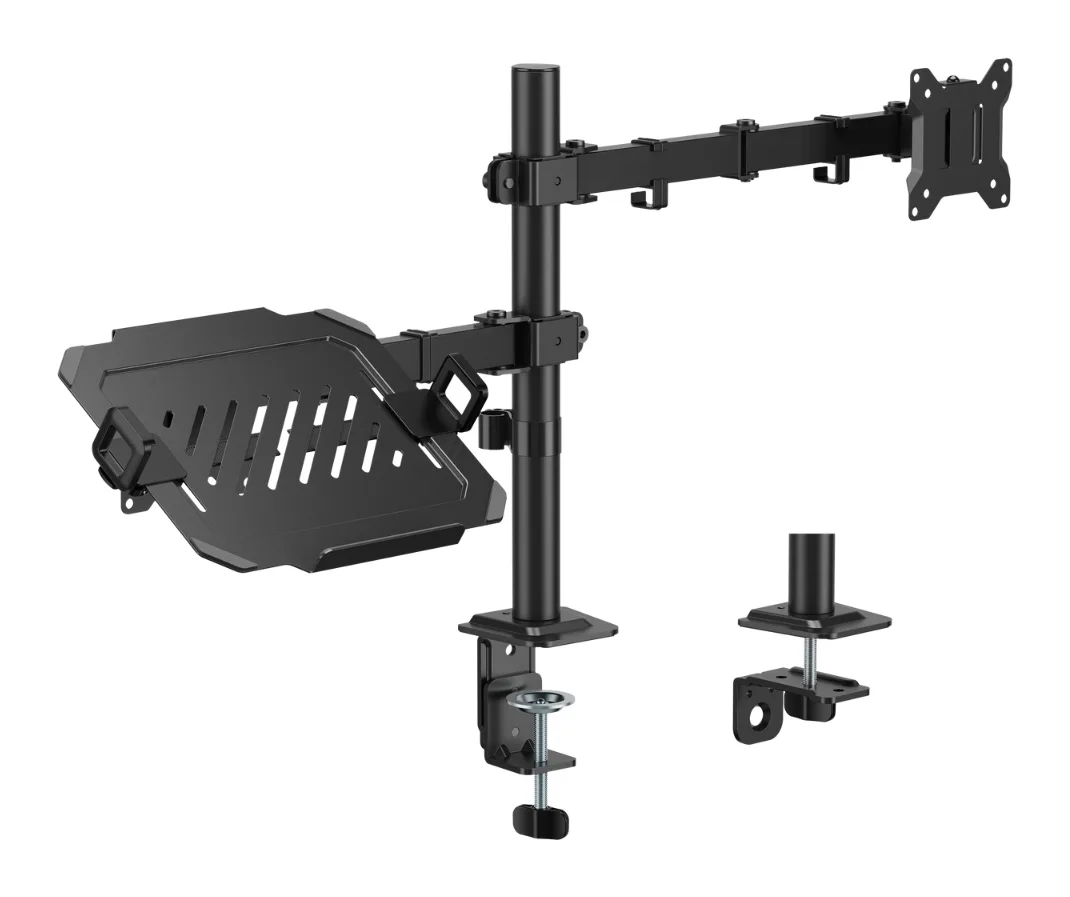
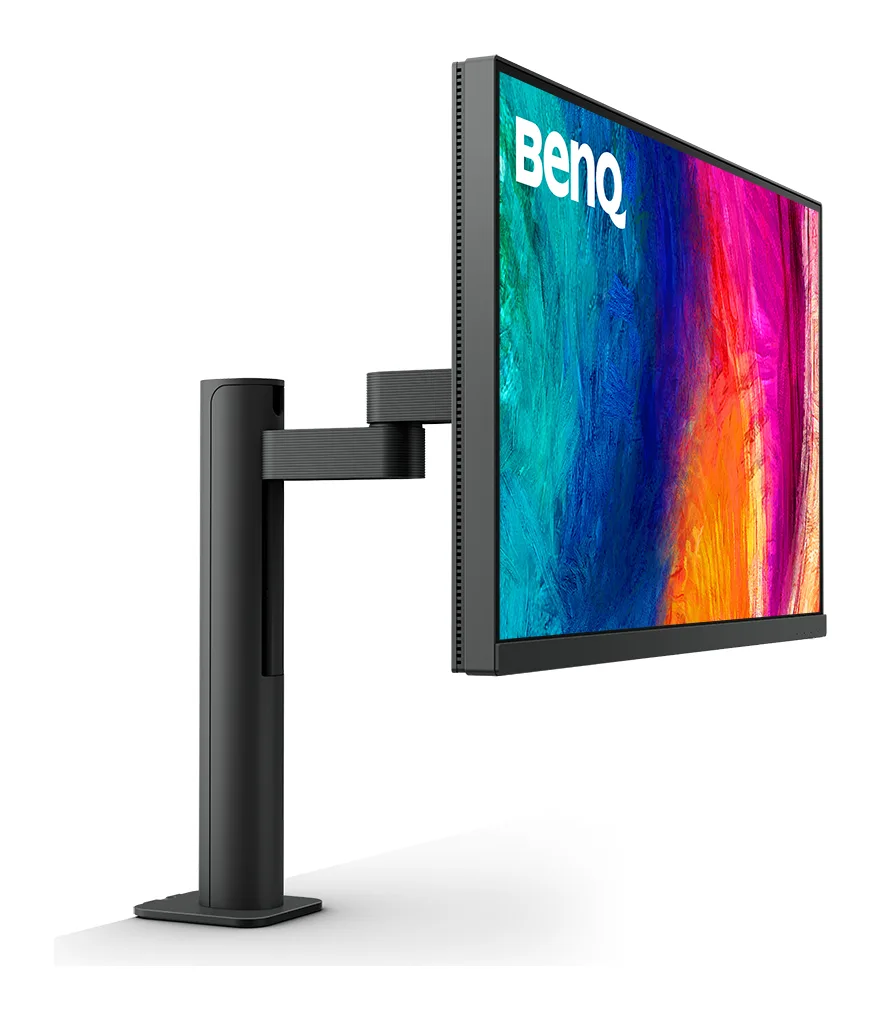
#4 · Gadget Wagon 2-in-1 Monitor & Laptop Desk Arm (GW-LDT110)
One pole that holds a 17–32" monitor and your laptop on a tray beside it — the cheapest way to make a MacBook + monitor desk look clean.
What we like
- Monitor (17–32", up to 10kg) and laptop tray (12–17", up to 9kg) on one pole
- Clamp and grommet mounts both included
- Tilt ±45°, swivel ±90°, rotate ±180°
- Metal build; tray has non-slip pads and a safety ledge
Keep in mind
- Brand-new listing with few owner ratings so far
- 1-year warranty (vs. 3 years on most monitors)
- Desk must be 10–85mm thick for the clamp
Full specifications
| Monitor size | 17" – 32" |
|---|---|
| Monitor weight limit | 10 kg |
| Laptop size | 12" – 17" |
| Laptop weight limit | 9 kg |
| Mounting | C-clamp (10–85mm) or grommet (10–45mm) |
| Movement | Tilt ±45°, swivel ±90°, rotation ±180° |
| Arm extension | 376 mm |
| Pole height | 408 mm |
| Tray | 260 × 230 mm, extends 292–488 mm wide |
| Weight | 4.5 kg |
| Warranty | 1 year |
Set it up in 15 minutes: the order that works
- Clamp the pole to the back edge of your desk, centred behind where you sit.
- Attach the VESA plate to the monitor (stand removed), then hang the monitor on the arm.
- Set the monitor height so the top edge is at or slightly below eye level.
- Add the laptop tray at the same height as the monitor's bottom edge.
- Run the USB-C (or video) cable along the arm, then tighten the tension screws.
- On your Mac, open System Settings → Displays and arrange the screens to match their real positions.
Our verdict
If you can stretch to it, Build 2 (Dell S2725QC + arm) is the best value desk upgrade a MacBook owner can make right now. Students should start with Build 1 and add USB-C later. Photographers and editors should go straight to Build 3.
Frequently asked questions
What's the minimum I need for a good MacBook desk setup?
A 4K external monitor at a comfortable height and a way to raise your MacBook to the same level. A monitor plus a combined monitor/laptop arm covers both.
Do I need a docking station?
Not with a USB-C monitor like the Dell S2725QC or BenQ MA270U. Their built-in USB hubs and USB-C charging do a dock's job through one cable. With the LG 27US550 (no USB-C), you'll keep using your MacBook charger and a separate video cable.
Can I use the MacBook screen as a second display?
Yes. Put it on the arm's laptop tray at the same height as the monitor, and arrange the displays in System Settings → Displays.